Unknown's avatar

About Hojin

I am very happy to help somebody for whatever as much as I can.

Windows Brute-Force Login Attack Analysis

Someday I needed to access my desktop at home from a office remotely. I configured RDP allowance setting on it which is Windows 10 before leaving home and noted the public IP address. So I could log in into my desktop over Remote Desktop Service. By the way I came up with how much my desktop was secure during the opening.

Extract Login Failed Windows Event Log

Firstly I extracted Windows Event Logs where ID is 4625 with the following PowerShell commands.

Get-WinEvent -FilterHashtable @{ LogName='Security'; Id=4625 } | 
ForEach-Object {
  New-Object PSObject -Property ([ordered]@{
  TimeCreated = $_.TimeCreated.ToString("yyyy-MM-dd hh:mm:ss")
  User = $_.Properties[5].Value
  LogonType = $_.Properties[10].Value
  SourceIP = $_.Properties[19].Value
})
} | Export-Csv -Path C:\Work\EventLogs-4625.csv

Given the raw data including date and time, and source IP address, we can make a timeline graph as below. As you can see in the graph, the maximum login attack attempts was about 350 times in a hour.

Screen Shot 2019-08-21 at 12.43.40 AM

I realized that threat actors are working hard to find any vulnerable system. In addution, you can download the raw data. EventLogs-4625

Extract Login Succeeded Windows Event Log

To make sure who unknown logged in my system, we can check Windows Event Log where ID is 4624. Here is a sample PowerShell script to extract the Windows Event Log.

$args = @{}
$args.Add("StartTime", ((Get-Date).AddHours(-24)))
$args.Add("EndTime", (Get-Date))
$args.Add("LogName", "Security")
$args.Add("Id", 4624)

Get-WinEvent -FilterHashtable $args | ForEach-Object {
New-Object PSObject -Property ([ordered]@{
  TimeCreated = $_.TimeCreated
  User = $_.Properties[5].Value
  LogonType = $_.Properties[8].Value
  LogonProcessId = $_.Properties[16].Value
  LogonProcess = $_.Properties[17].Value
  WorkstationName = $_.Properties[18].Value
  SourceIP = $_.Properties[19].Value
})
} | Where-Object LogonType -eq 7 | Format-Table
 

Windows Version

There are two types of Windows version.
1. Release verion
2. Build version

How to check the version

1. on Registry

HKLM\SOFTWARE\Microsoft\Windows NT\CurrentVersion
"CurrentMajorVersionNumber"==(REG_DWORD)0x0a
"CurrentMinorVersionNumber"==(REG_DWORD)0x00
"CurrentBuildNumber"==(REG_SZ)17134
---
"CurrentBuild"==(REG_SZ)17134
"CurrentVersion"==(REG_SZ)6.3

2. by using command

C:> systeminfo

Linux Initial Sweep

While we response any incident, we should make a list including indicators for instance IP address, domain name, file name and path, etc. With the indicator, we check if there is missing evidence or initial sweep.

$ grep -E -f ../IOCs/knownbad.txt ./*.log > ../result.txt
$ cat ../IOCs/knownbad.txt
\bws0\.txt
markup%5D=
[TRIMMED]

Must-Have Analysis Tools

Here is my initial installed program when I create my OS for incident analysis and response. All most is freeware and GUI. However I like CLI as well.

  • 7z – Compressor
  • IDA Pro Freeware – Static RCE
  • OllyDbg – Dynamic RCE
  • WinDbg
  • PE
    • PEStuido – PE Analyzer
    • BinText – Strings
    • HxD – Binary Viewer
    • VirusTotal Desktop
  • Digital Forensic
    • FTK Imager, OSF Mount
    • Volatility
    • Windows Event Viewer / Splunk
  • Windows Artifacts – http://live.sysinternals.com
    • autoruns.exe
    • procexp.exe
    • Procmon.exe
  • VirtualBox / VMware Workstation
  • Development
    • Python, Anaconda, Jupyter
    • TortoiseSVN, SourceTree for Git, WinMerge
  • Office Tools
    • Picpick – Screen Capture
    • Google Docs / Microsoft Office
    • Notepad++

Elasticsearch Curator

To secure HDD space somehow, Curator can help you. The installation of Curator on Ubuntu is very simple. Because, however, the configuration way was changed, this post is helpful for you.

Elasticsearch Curator Installation

# sudo apt-get -y install python-pip
# sudo pip install elasticsearch-curator


Make a schedule on Crontab

As I mentioned early, if you used Curator over 4.0 version, you should configure as below. It’s not mandatory of the configuration path, “/etc/curator/”.

30 0 * * * /usr/local/bin/curator --config=/etc/curator/curator.yml /etc/curator/del_elastic_indices.yml

# cat /etc/curator/curator.yml

client:
  hosts:
    - 127.0.0.1
  port: 9200
  use_ssl: False
  ssl_no_validate: False
  timeout: 30
  master_only: False

logging:
  loglevel: INFO
  logfile: /var/log/curator.log
  logformat: default

# cat /etc/curator/del_elastic_indices.yml

actions:
  1:
    action: delete_indices
    description: "Delete selected indices"
    options:
      ignore_empty_list: True
      timeout_override:
      continue_if_exception: False
      disable_action: False
    filters:
    - filtertype: pattern
      kind: prefix
      value: filebeat-
      exclude:
    - filtertype: age
      source: name
      direction: older
      timestring: '%Y.%m.%d'
      unit: days
      unit_count: 7
      exclude:

To check the result of the curator execution just before, you can ask Elasticseach by following RESTFull URL.

# curl -XGET 'http://localhost:9200/_cat/indices/*' -s
yellow open filebeat-2016.07.13 5 1 32 0 472.4kb 472.4kb
yellow open filebeat-2016.07.12 5 1 4 0 90.5kb 90.5kb
yellow open filebeat-2016.07.15 5 1 2980542 0 2.6gb 2.6gb
yellow open filebeat-2016.07.14 5 1 2604353 0 2.1gb 2.1gb
yellow open .kibana 1 1 103 0 89.3kb 89.3kb
yellow open filebeat-2016.07.11 5 1 3 0 54.1kb 54.1kb

Additionally, you can also check the log of the execution into a log file we specified in a curator configuration file, curator.yml.

# tail -n 5 /var/log/curator.log
2016-07-15 14:56:59,285 INFO Deleting selected indices
2016-07-15 14:56:59,285 INFO ---deleting index filebeat-2016.07.08
2016-07-15 14:56:59,285 INFO ---deleting index filebeat-2016.07.07
2016-07-15 14:56:59,326 INFO DELETE http://127.0.0.1:9200/filebeat-2016.07.07,filebeat-2016.07.08?master_timeout=30s [status:200 request:0.041s]

For your information, here is a cron job for old curator version.

30 0 * * * /usr/local/bin/curator --host 127.0.0.1 delete indices --older-than 7 --timestring \%Y.\%m.\%d --time-unit days

Alert v.s. Monitoring

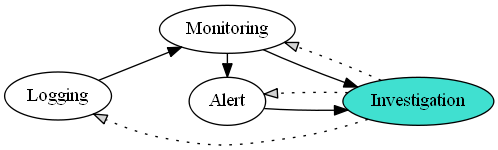
Regarding Alert and Monitoring, in fact it has quite different meaning between them literally. Alert is a warning or alarm of something wrong or suspicious what you want to be aware. Monitoring is to watch closely for specific purposes.

security_activity

Security Activity Relationship

digraph {
  rankdir=LR
  L [label="Logging"]
  M [label="Monitoring"]
  A [label="Alert"]
  I [label="Investigation" style=filled fillcolor=turquoise]
    L -> M
    M -> A
    M -> I
    A -> I
    I -> L [style=dotted fillcolor=lightgray]
    I -> A [style=dotted fillcolor=lightgray]
    I -> M [style=dotted fillcolor=lightgray]
  {rank=same A M}
}

However it is not difficult to see mixing those signification between them in terms of computer security. For instance, someone made an alert which was issued by email for just looking login history. It’s not bad, but we most likely ignore this kind of email if there are too much them in your inbox. It’s a problem.

In my opinion, Alert has an threshold and Monitoring has an ability to aware of out-of-data by using visibility.

In terms of security, alert is occurred when over a specific threshold. For example, if login requests in a IP address over 100 in a second, an alert will be happened to notice there were suspicious logins. It might be an login brute force attack. With this alert, we are going to investigate if it is an attack or not. In this respect, we need to know variant attacks in order to decide the exact threshold.

On the other hands, monitoring is looking at suspicious one like out-of-data. For example, we usually adopt binary-entropy in order to come up with out-of-data among lots of normal PE(Portable Executable)

Extracting Data from XML by Python

I usually executed md5deep64.exe with “-d” parameter to create the result as XML format includes both file full path and MD5 value.

C:> md5deep64.exe -r -d * > C:\%COMPUTERNAME%_%DATE%.xml

The XML file that is the result of the command above shows like this as below.

<?xml version='1.0' encoding='UTF-8'?>
<dfxml xmloutputversion='1.0'>
<metadata
xmlns='http://md5deep.sourceforge.net/md5deep/'
xmlns:xsi='http://www.w3.org/2001/XMLSchema-instance'
xmlns:dc='http://purl.org/dc/elements/1.1/'>
<dc:type>Hash List</dc:type>
</metadata>
<creator version='1.0'>
<program>MD5DEEP</program>
<version>4.3</version>
<build_environment>
<compiler>GCC 4.7</compiler>
</build_environment>
<execution_environment>
<command_line>c:\temp\md5deep64.exe -r -d *</command_line>
<start_time></start_time>
</execution_environment>
</creator>
<configuration>
<algorithms>
<algorithm name='md5' enabled='1'/>
<algorithm name='sha1' enabled='0'/>
<algorithm name='sha256' enabled='0'/>
<algorithm name='tiger' enabled='0'/>
<algorithm name='whirlpool' enabled='0'/>
</algorithms>
</configuration>
<fileobject>
<filename>C:\bootmgr</filename>
<filesize>398356</filesize>
<ctime></ctime>
<mtime></mtime>
<atime></atime>
<hashdigest type='MD5'>55272fe96ad87017755fd82f7928fda0</hashdigest>
</fileobject>
<fileobject>
<filename>C:\BOOTNXT</filename>
<filesize>1</filesize>
<ctime></ctime>
<mtime></mtime>
<atime></atime>
<hashdigest type='MD5'>93b885adfe0da089cdf634904fd59f71</hashdigest>
</fileobject>
</dfxml>

To extract md5 and filepath from the XML, we can use minidom python library.

from xml.dom import minidom
xmldoc = minidom.parse(fn)
files = xmldoc.getElementsByTagName('fileobject')
for fileobject in files:
  fn = fileobject.getElementsByTagName('filename')[0]
  md5 = fileobject.getElementsByTagName('hashdigest')[0]
  print fn.firstChild.data +", "+ md5.firstChild.data

Once we execute the python code to parsing a huge XML, however, we can easily meet Memory Error. To avoid this kind of error, I used BeautifulSoup.

from bs4 import BeautifulSoup
fp = open(fn, 'r')
soup = BeautifulSoup(fp, 'xml')
for node in soup.findAll('fileobject'):
  try:
    print "%s, %s"%(node.hashdigest.string,node.filename.string)
  except UnicodeEncodeError as e:
    continue

The whole code is uploaded at my GitHub.
https://github.com/hojinpk/CodeSnippets/blob/master/extracting_md5_from_XML.py

Huge Syslog Archive MySQL file

I or maybe you have a problem there is no disk space due to MySQL database on Security Onion Sensor Server. Upon investigating, I realized a table is huge around 34GB.

$ find / -type f -name '*.ARN' -size +1024M -ls
524481 36073464 -rw-rw---- 1 mysql mysql 36939788428 May 26 12:41 /var/lib/mysql/syslog_data/syslogs_archive_1004053.ARN

The table is related to ELSA including MySQL, Sphinx and syslog-ng.

To delete the huge file elegantly, we can use a script, /usr/bin/securityonion-elsa-reset-archive, but the target table of the script is fixed to ‘syslogs_archive_1’. So you can use the script after replacing the table name to found one above or type some commands directly as below.

$ mysql --defaults-file=/etc/mysql/debian.cnf syslog_data \
 -e "DROP TABLE syslog_data.syslogs_archive_1004053"
$ mysql --defaults-file=/etc/mysql/debian.cnf syslog_data \
 -e "DELETE FROM syslog.tables \
      WHERE table_name='syslog_data.syslogs_archive_10024053'"
$ rm /var/lib/mysql/syslog_data/syslogs_archive_1004053.ARN

If you want to remove all of tables, whose name is start with ‘syslogs_archives_1’, you can utilize the sql below.

SELECT CONCAT('DROP TABLE ', GROUP_CONCAT(table_name), ';') as statement 
  FROM information_schema.tables
 WHERE table_name LIKE 'syslogs_archive_1%'

Basically, you need to adjust a value of retention_days of ‘/etc/elsa_node.conf’ because the huge table belongs to ELSA.

BTW, the reason why the table in question became huge is still remain. I just tried delete it as above. Sorry for that.

Create Windows Task Scheduler

This page describes how to create a Windows task scheduler with proper user. It means that the user doesn’t need to have the unused permission. For example, console logon both locally and remotely.

  1. Press + R, type “taskschd.msc” and press Enter
  2. Create the task in the Task Scheduler as planned.
  3. Select the “Run whether user is logged on or not” radio button.
  4. Check the “Do not store password” checkbox.
  5. Check the “Run with highest privileges” checkbox.
  6. Assign the task to run under the new user account.
    1. Refer to Create a local account without console logon.


windows_tasksched2

Update

  1. Once “Do not store password…” ticked, you could meet an error #2147943711.