Unknown's avatar

About Hojin

I am very happy to help somebody for whatever as much as I can.

Critical Items for Incident Report

I am going to talk about the essential requirement of Incident Report.

Today I saw an incident report as a worse case in accordance with my argument as above. The incident response in the bad report is reporting to the team manager. And the countermeasure is that the reporter would do something after getting an approval from the manager.

First, the report should be included the followings at least in my opinion.

  1. Date and Time with UTC
  2. What’s the incident?
  3. Initial Response
  4. Analysis
  5. Countermeasure

Second, there is purpose of these items above. When we’re responding an incident, we tend to forget what is the incident because we can easily be flaggy under pressure. Once we’re under the incident, we have to be trying to focus to prevent to extent the incident and preserve the evidence as many as we can. In the meantime we’re on the initial response or after that, we should analyze the incident according the evident in order to identify the extend of the incident. Additionally it would be better to analyze it with over 2 analysts at least to avoid to be biased the result. With the accurate analysis result, we can also build countermeasure(s) in order to prevent re-occurrence.

In addition, there are a couple of method on each step. For example, MECE(Mutually Exclusive and Collectively Exhaustive), PDCA(Plan, Do, Check, Action), 5 Whys and so on. If we introduce the method when responding the incident, we can get a little bit closer the aforementioned purpose.


Base Splunk query on indexing time

If you manage Splunk, you might want to know when the log is indexed. Basically we can know when the log was generated by means of _time keyword, however it’s not indicated indexing time. _indextime indicates indexing time.

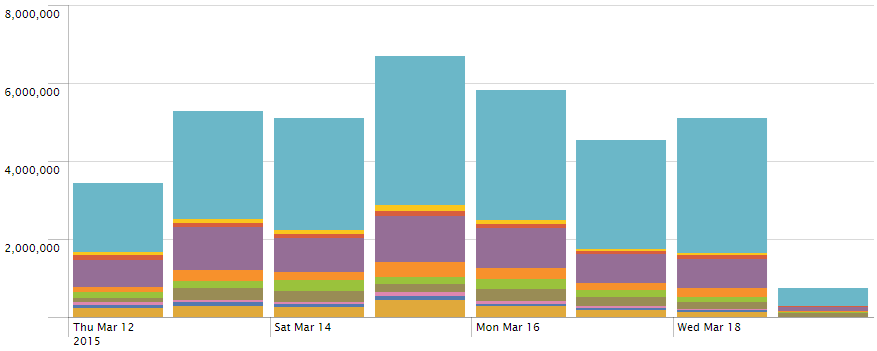
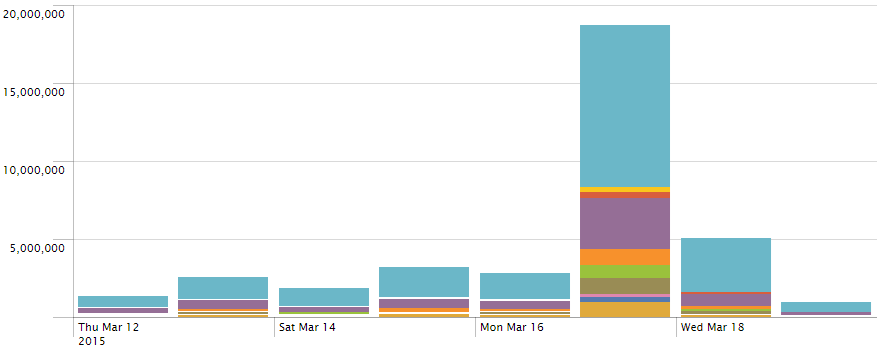
Here is a sample to compare the result of using between _time and _indextime. As you can see the graph below, lots of log for 5 days at least was collected at 18th Mar. 2015.

_indextime
your query | fillnull | eval _tme = _indextime | timechart cont=t usenull=f useother=f span=1d count by cs_host


_time
y
our query | timechart usenull=f useother=f span=1d count by cs_host

Add Google Map on Splunk Dashboard

Once you create a Splunk dashboard by using GoogleMap, you may meet some problem if you are beginner about the GoogleMap like me.

1. Create Dashboard

It may be easy to create a dashboard on Splunk web normally.

2. Convert the simpleXML to advancedXML

To add a Google map on the new dashboard, you need to convert from simpleXML to advancedXML. First, you can get the advancedXML from a URL

http://localhost:8000/en-US/app/search/{dashboard_name}?showsource=advanced

Once you connect the URL above, you can see a page like this below. If so, copy the advancedXML to notepad in order to add a GoogleMap.

Splunk_AdvancedXML

3. Add Google Map

Here is a sample GoogleMap module. After change the red and Italic style font to adjust on your site, add it on the advancedXML.

<module name=”HiddenSearch” group=”Map View” layoutPanel=”panel_row3_col1” autoRun=”true”>
<param name=”search”>{query_string}</param>
<param name=”earliest”>-8h@h</param>
<module name=”GoogleMaps”>
<param name=”height”>500px</param>
<param name=”drilldown_field”>addr</param>
<param name=”mapType”>terrain</param>
<param name=”scrollwheel”>off</param>
<param name=”zoomLevel”>2</param>
<param name=”center”>30.580607, 6.111675</param>
</module>
</module>

4. Save

Go to [Splunk> Manager >> User interface >> Views] on your Splunk web. After open a dashboard made at #1, replace it all to the modified advancedXML. Finally, click the save button. Now browse the board, you can see the GoogleMap.

Splunk Visual Basic Script

I made a script by using VB script as below. This script is forcing to show how to get the Splunk Parameters. Once you try to get the parameter by using “Wscript.Arguments”, you get wrong value because it separate the parameters based on space or tab. Here is a list of the Splunk parameters

  • SPLUNK_ARG_0 Script name
  • SPLUNK_ARG_1 Number of events returned
  • SPLUNK_ARG_2 Search terms
  • SPLUNK_ARG_3 Fully qualified query string
  • SPLUNK_ARG_4 Name of saved search
  • SPLUNK_ARG_5 Trigger reason (for example, “The number of events was greater than 1”)
  • SPLUNK_ARG_6 Browser URL to view the saved search
  • SPLUNK_ARG_8 File in which the results for this search are stored (contains raw results)

Ref) http://docs.splunk.com/Documentation/Splunk/5.0.2/alert/ConfiguringScriptedAlerts

On Error Resume Next
Err.Clear

Function GetNow()
t = Timer
temp = Int(t)
Miliseconds = Int((t-temp) * 1000)
Seconds = temp mod 60
temp = Int(temp/60)
Minutes = temp mod 60
Hours = Int(temp/60)
strTime = String(2 – Len(Hours), "0") & Hours & ":"
strTime = strTime & String(2 – Len(Minutes), "0") & Minutes & ":"
strTime = strTime & String(2 – Len(Seconds), "0") & Seconds & "."
strTime = strTime & String(4 – Len(Miliseconds), "0") & Miliseconds
GetNow = FormatDateTime(Date, 2) &" "& strTime
End Function

Const ForReading = 1, ForWriting = 2, ForAppending = 8
Dim objFSO, objLog
Set objFSO = CreateObject("Scripting.FileSystemObject")
Set objLog = objFSO.OpenTextFile("D:\log\splunk_script" & GetNow() & ".log", ForAppending, True)

<span style="color: #ff0000;"><em>Set oShell = CreateObject( "WScript.Shell" ) </em></span>
<span style="color: #ff0000;"><em>user = oShell.ExpandEnvironmentStrings("%UserName%") </em></span>
<span style="color: #ff0000;"><em>arg4 = oShell.ExpandEnvironmentStrings("%SPLUNK_ARG_4%") </em></span>
<span style="color: #ff0000;"><em>arg6 = oShell.ExpandEnvironmentStrings("%SPLUNK_ARG_6%")</em></span>

if Wscript.Arguments.Count > 5 then
Dim objSell
Dim strContent

strContent = "["&arg4&"] "& arg6

Set objShell = Wscript.CreateObject("WScript.Shell")
objShell.Run """C:\Program Files\Splunk\bin\scripts\sms.vbs"" """ & strContent & """"
Set objShell = Nothing
end if

if Err.Number <> 0 then
‘ An exception occurred
objLog.WriteLine "Exception:" & vbCrLf &_
" Error number: " & Err.Number & vbCrLf &_
" Error description: ‘" & Err.Description & "’" & vbCrLf
end if

objLog.Close
Set objLog = Nothing
Set objFSO = Nothing

Funny things

My pet theory is there should be FUN when you are doing anything.

Every time I opened my laptop, its’ Network interface didn’t work. There are two options to use Internet on it. The first is waiting until connected the Internet automatically, but it’s take so long time, So I usually chose the second option. The second option is able to reduce the waiting time by turning off/on Network interface by using a batch script below.

netsh interface set interface Wi-Fi DISABLED
netsh interface set interface Wi-Fi ENABLED
netsh interface ip show interface
ping -n 10 8.8.8.8

However, I didn’t execute the batch script on the offline laptop today. Because I can wait until I use the Internet while playing a quit simple game on Chrome browser as below. I found FUN.

chrome_offline_game

Sometime, I envy what Google do that. I really want to find funny things in Computer Security.

Security is a persistent

A security breach made me to be more thinking what OR how is a practical security. I think it’s important not only to protect aginst attack but also to prevent it. However we can easily lean to the former because it’s take more time and money also than the latter. The other hands, the prevent action is effective and efficent in terms of security.

There is a brute force attack in order to find a password of a target user. We use just six number as a verification code like OTP. It means that an attacker can know a password in maximum 1,000,000 times in theory. It just takes 14 minute unless there is threshold of PPS.

Anyway we can protect the attack by block the IP addresses used in it. But attacker keep to trying to attack with change the IP address. After all, the prevention is not property prevention.

We need to know why/how did the attacker attack in order to cut off the root cause. That is what we call the user profiling. But it’s not easy as you know. We are lack basically about an attacker who is hidden like a rootkit.

We already know that is. So we must make persistent effort to follow up the attacker as if we are waiting rainbow.

IMG_0107.JPG

BitLocker without TPM

Most people know BitLocker can be enabled only if there is Trusted Platform Module (“TPM”) on a motherboard. However, we can use the BitLocker without TPM chip. Here is a manual.

TPM, Trusted Platform Module

TPM, Trusted Platform Module

  1. Press “Windows+R” at the same time on your keyboard to start the Run command line.
  2. Type “gpedit.msc” and click OK.
  3. A new window will be opened.
  4. Click on Administrative Templates under Computer Configuration
  5. Double Click on Windows Components in the right window.
  6. Double Click on BitLocker Drive Encryption.
  7. Double Click on Operating System Drives.
  8. Double Click on Require Additional Authentication at Startup
  9. A new window will be opened.
  10. Click “Enabled”
  11. Click OK and close the window.

Now you are ready to use BitLocker for your drives.

  1. Right Click on C or any drive in Computer folder.
  2. Choose Turn On BitLocker
  3. Follow the Steps

If you want to know whether your system has a TPM on Windows, you can check it out on Trusted Platform Module Management (tpm.msc)

Change Linux timezone

If you want to change Linux system timezone such as CST, KST and so on, follow following steps. But, you should know the string of timezone you want to change. You can search at this site – http://www.timezoneconverter.com/cgi-bin/zoneinfo

# Confirm current setting information of the system about timezone

$ date
$ cat /etc/timezone

# I gonna to change it’s timezone to CET and synchronize
$ echo “Europe/Luxembourg” | tee /etc/timezone
$ cat /etc/timezone
$ dpkg-reconfiure —frontend noninteractive tzdata

# Check if the value is changed
$ date


Export Win Tasks List to CSV

If you want to check all of Windows Task Schedulers at a glance, you can do this by using schtasks.exe which is a Windows default system program in C:\Windows\System32\.

C:\> schtasks.exe /Query /FO CSV /V > %COMPUTERNAME%_%DATE%_schtasks.csv

Once you set /FO option as CSV format, you can read this result by Excel. And you can see the title of each column if you use a /NH option.  Here is a sample about the columns.

  1. TaskName
  2. Next Run Time
  3. Status
  4. Logon Mode
  5. Last Run Time
  6. Last Result
  7. Author
  8. Task To Run
  9. Start In
  10. Comment
  11. Scheduled Task State
  12. Idle Time
  13. Power Management
  14. Run As User
  15. Delete Task If Not Rescheduled
  16. Stop Task If Runs X Hours and X Mins
  17. Schedule
  18. Schedule Type
  19. Start Time
  20. Start Date
  21. End Date
  22. Days
  23. Months
  24. Repeat: Every
  25. Repeat: Until: Time
  26. Repeat: Until: Duration
  27. Repeat: Stop If Still Running

Especially, I focus two columns, “3. Status” and “14. Run As User” in terms of incident response.

Windows’ uptime

  1. C:\> net stats srv
  2. C:\> systeminfo | find “System Boot Time”
  3. In Windows Task Manager, select the Performance tab.
  4. GetTickCount64()
  5. In Windows System Event Log, Event ID 6005

Note: the Event ID 6006 is what tells us when the server has gone down, so if there’s much time difference between the 6006 and 6005 events, the server was down for a long time.