Base Splunk query on indexing time

If you manage Splunk, you might want to know when the log is indexed. Basically we can know when the log was generated by means of _time keyword, however it’s not indicated indexing time. _indextime indicates indexing time.

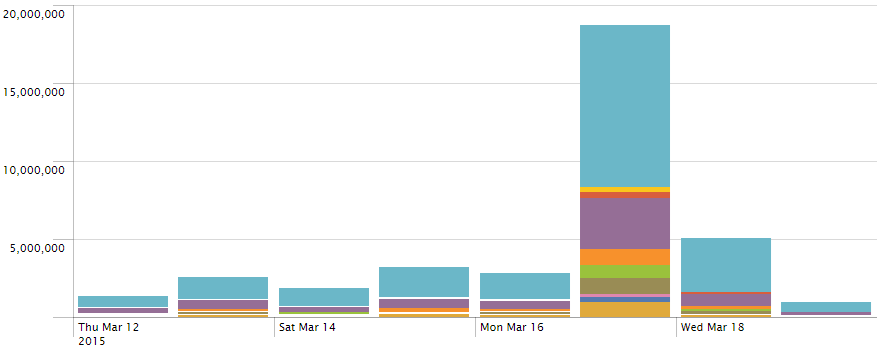
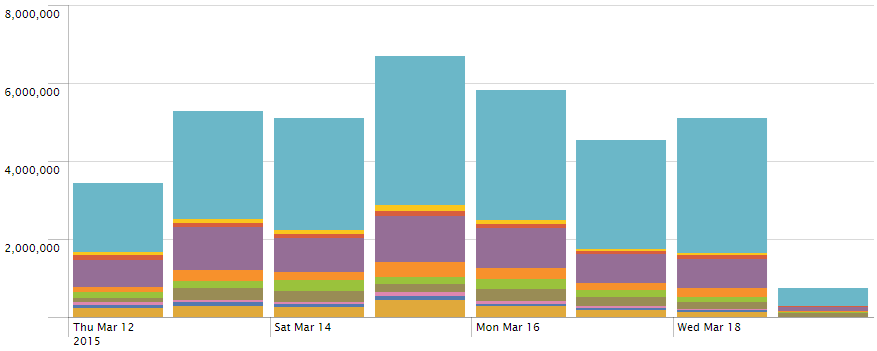
Here is a sample to compare the result of using between _time and _indextime. As you can see the graph below, lots of log for 5 days at least was collected at 18th Mar. 2015.

_indextime
your query | fillnull | eval _tme = _indextime | timechart cont=t usenull=f useother=f span=1d count by cs_host


_time
y
our query | timechart usenull=f useother=f span=1d count by cs_host

Add Google Map on Splunk Dashboard

Once you create a Splunk dashboard by using GoogleMap, you may meet some problem if you are beginner about the GoogleMap like me.

1. Create Dashboard

It may be easy to create a dashboard on Splunk web normally.

2. Convert the simpleXML to advancedXML

To add a Google map on the new dashboard, you need to convert from simpleXML to advancedXML. First, you can get the advancedXML from a URL

http://localhost:8000/en-US/app/search/{dashboard_name}?showsource=advanced

Once you connect the URL above, you can see a page like this below. If so, copy the advancedXML to notepad in order to add a GoogleMap.

Splunk_AdvancedXML

3. Add Google Map

Here is a sample GoogleMap module. After change the red and Italic style font to adjust on your site, add it on the advancedXML.

<module name=”HiddenSearch” group=”Map View” layoutPanel=”panel_row3_col1” autoRun=”true”>
<param name=”search”>{query_string}</param>
<param name=”earliest”>-8h@h</param>
<module name=”GoogleMaps”>
<param name=”height”>500px</param>
<param name=”drilldown_field”>addr</param>
<param name=”mapType”>terrain</param>
<param name=”scrollwheel”>off</param>
<param name=”zoomLevel”>2</param>
<param name=”center”>30.580607, 6.111675</param>
</module>
</module>

4. Save

Go to [Splunk> Manager >> User interface >> Views] on your Splunk web. After open a dashboard made at #1, replace it all to the modified advancedXML. Finally, click the save button. Now browse the board, you can see the GoogleMap.

Splunk Visual Basic Script

I made a script by using VB script as below. This script is forcing to show how to get the Splunk Parameters. Once you try to get the parameter by using “Wscript.Arguments”, you get wrong value because it separate the parameters based on space or tab. Here is a list of the Splunk parameters

  • SPLUNK_ARG_0 Script name
  • SPLUNK_ARG_1 Number of events returned
  • SPLUNK_ARG_2 Search terms
  • SPLUNK_ARG_3 Fully qualified query string
  • SPLUNK_ARG_4 Name of saved search
  • SPLUNK_ARG_5 Trigger reason (for example, “The number of events was greater than 1”)
  • SPLUNK_ARG_6 Browser URL to view the saved search
  • SPLUNK_ARG_8 File in which the results for this search are stored (contains raw results)

Ref) http://docs.splunk.com/Documentation/Splunk/5.0.2/alert/ConfiguringScriptedAlerts

On Error Resume Next
Err.Clear

Function GetNow()
t = Timer
temp = Int(t)
Miliseconds = Int((t-temp) * 1000)
Seconds = temp mod 60
temp = Int(temp/60)
Minutes = temp mod 60
Hours = Int(temp/60)
strTime = String(2 – Len(Hours), "0") & Hours & ":"
strTime = strTime & String(2 – Len(Minutes), "0") & Minutes & ":"
strTime = strTime & String(2 – Len(Seconds), "0") & Seconds & "."
strTime = strTime & String(4 – Len(Miliseconds), "0") & Miliseconds
GetNow = FormatDateTime(Date, 2) &" "& strTime
End Function

Const ForReading = 1, ForWriting = 2, ForAppending = 8
Dim objFSO, objLog
Set objFSO = CreateObject("Scripting.FileSystemObject")
Set objLog = objFSO.OpenTextFile("D:\log\splunk_script" & GetNow() & ".log", ForAppending, True)

<span style="color: #ff0000;"><em>Set oShell = CreateObject( "WScript.Shell" ) </em></span>
<span style="color: #ff0000;"><em>user = oShell.ExpandEnvironmentStrings("%UserName%") </em></span>
<span style="color: #ff0000;"><em>arg4 = oShell.ExpandEnvironmentStrings("%SPLUNK_ARG_4%") </em></span>
<span style="color: #ff0000;"><em>arg6 = oShell.ExpandEnvironmentStrings("%SPLUNK_ARG_6%")</em></span>

if Wscript.Arguments.Count > 5 then
Dim objSell
Dim strContent

strContent = "["&arg4&"] "& arg6

Set objShell = Wscript.CreateObject("WScript.Shell")
objShell.Run """C:\Program Files\Splunk\bin\scripts\sms.vbs"" """ & strContent & """"
Set objShell = Nothing
end if

if Err.Number <> 0 then
‘ An exception occurred
objLog.WriteLine "Exception:" & vbCrLf &_
" Error number: " & Err.Number & vbCrLf &_
" Error description: ‘" & Err.Description & "’" & vbCrLf
end if

objLog.Close
Set objLog = Nothing
Set objFSO = Nothing

Exclude something by regular expression on Splunk

Splunk support regular expression when you search. It’s very helpful for those who want to extract or exclude something. One day, I found suspicious domain name like ‘afyblkodyg’, ‘imdcbazmqh’, etc. in proxy log.  Actually, these words are not domain in fact. Anyway, I want to know how often does it happen. So I decided to search such a strange words in the proxy log by Splunk.

Splunk> index=idxproxy
| rex field=cs_host(?<xdomain>.*(?<!\.com|\.co|\.lu|\.net|\.org)$)”
| search xdomain!=”” | table _time, c_ip, xdomain

_time                              c_ip                xdomain
1 4/21/14 5:06:27.000 AM 10.10.250.252 afyblkodyg
2 4/21/14 5:06:27.000 AM 10.10.250.252 imdcbazmqh
3 4/21/14 5:06:27.000 AM 10.10.250.252 nidxikaxyh
4 4/17/14 9:39:43.000 PM 10.10.250.252 stqbnqsfok
5 4/17/14 9:39:43.000 PM 10.10.250.252 bbrsqktfut
6 4/17/14 9:39:43.000 PM 10.10.250.252 dnvujghghr

Splunk rex


Base on the log

A suspicious user have been access to login a web page in order to login brute force attack. So Security engineer trying to block by using a sort of Network appliance. For this reason he/she needs a number of limit access time.

Basically, we should gather various logs and it should be able to search. The effectiveness is the next step. On based these systems, we have to extract a number from the log, not estimation so as to get the limit number.

In my case, I used the Splunk for it as below.

earliest=”4/2/2014:13:50:00″ latest=”4/2/2014:14:00:00″ 
source=IIS cs_method=POST
(cs_uri_stem=”/Authentication.asmx*” OR cs_uri_stem=”/Registration.asmx*”)
| where NOT cidrmatch(10.10.0.0/16″,c_ip)
| timechart span=5s limit=5 count by c_ip usenull=f useother=f

access_top_5

Eventually, I can define the limit number is 20 per 5 seconds as above graph.